Configure E2EE
Your files stored on the Nextcloud server are not encrypted by default. However, you can enable E2EE (end-2-end encryption) to increase your privacy.
With E2EE all your files will be encrypted with a key stored on your device before they are uploaded to the server. This way your files are inaccessible for the server administrators or in case of a data breach. When storing very sensitive information we strongly recommend enabling E2EE.
Mnemonic seed phrase
When you configure E2EE, you will generate a Mnemonic seed phrase. Do NOT lose this phrase. In case your device disconnects you may lose access to your files forever. We can not help you to recover encrypted files.
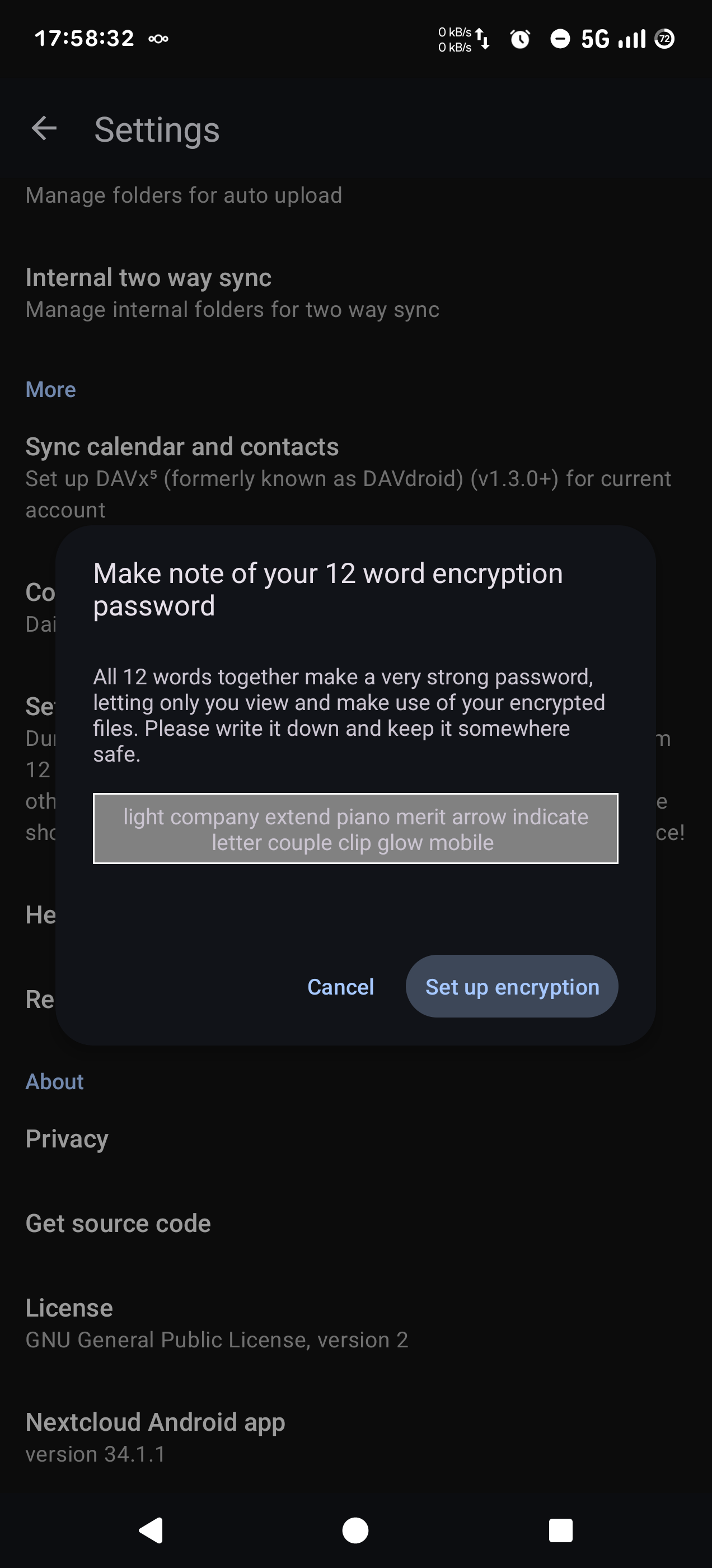
The Mnemonic seed phrase shown in this guide is for illustration purposes only. It does not protect real files. Never share your real Mnemonic with someone else.
Alternative solution: Cryptomator
Although Nextcloud E2EE is a very cool feature, it is possible you run into synchronization problems. Our tests with it are of mixed quality. Because of this we want to inform you of an alternative solution.
Cryptomator is a encryption tool specially designed for the cloud. With the app you create an encrypted volume inside your Nextcloud folder, which is synced to the server. Files you add to the volume are encrypted before being uploaded. See how it works on the official website.
Configure mobile app
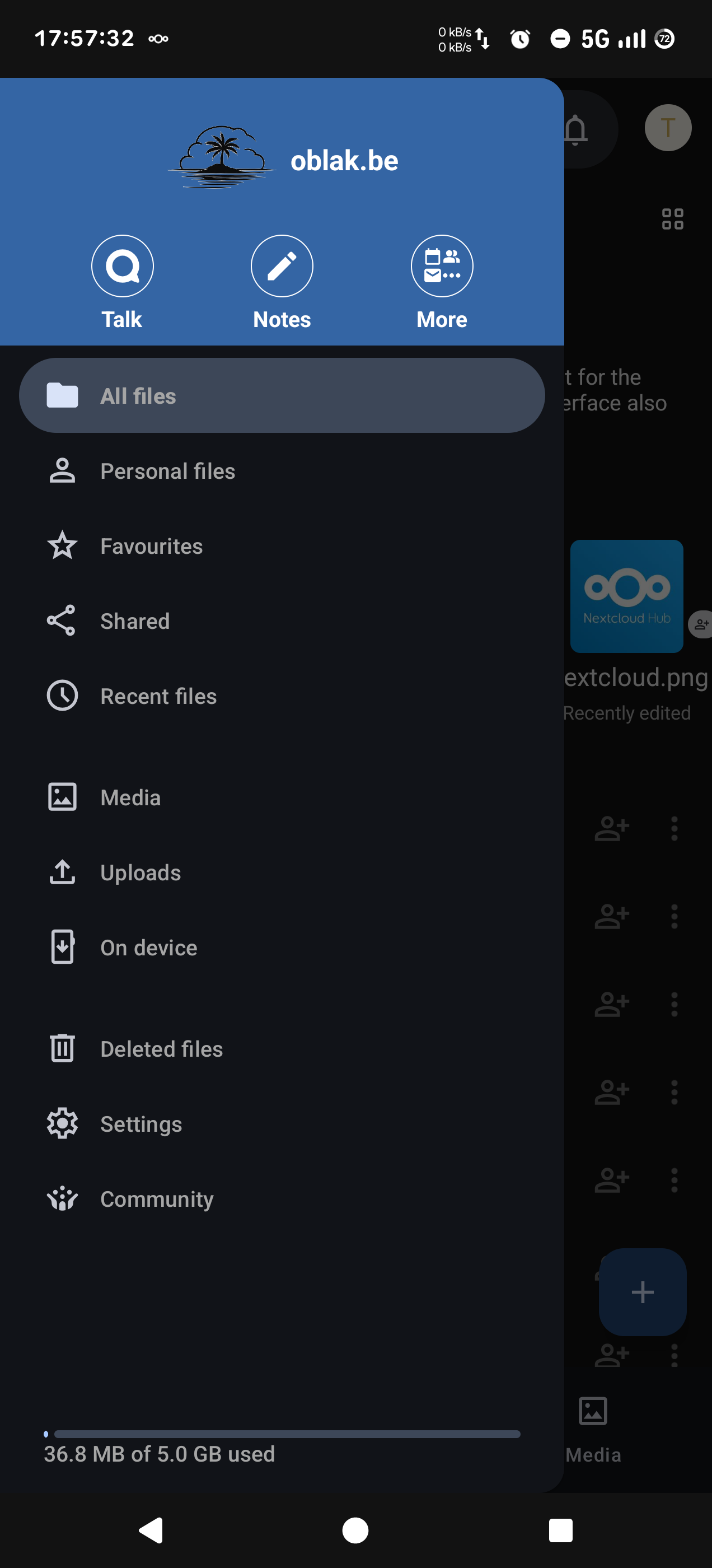
Open the mobile app and go to Settings
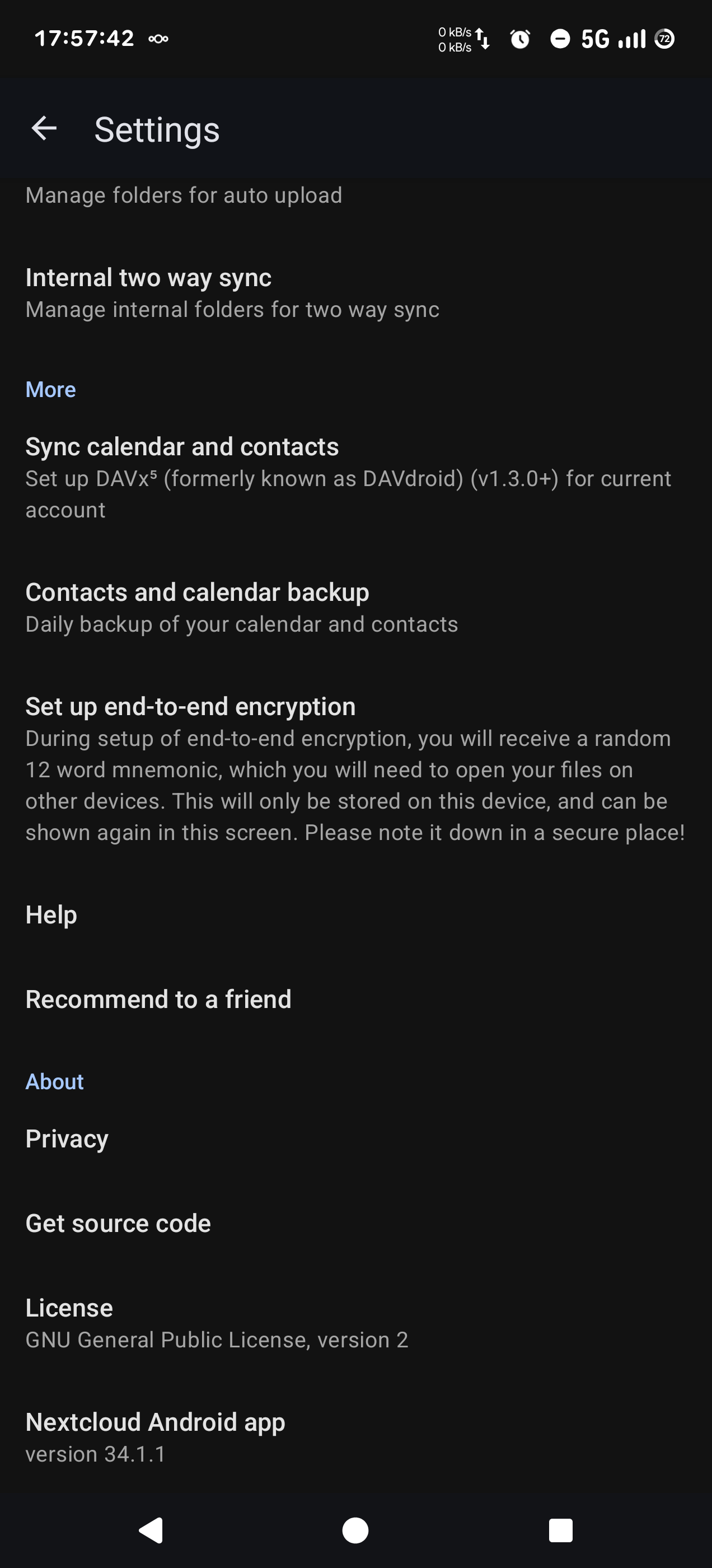
Scroll down and tap Set up end-to-end encryption
Write down the Mnemonic seed phrase on paper or in a password manager app. Then tap Set up encryption
You can navigate back to the home screen. Click the + icon and choose New encrypted folder.
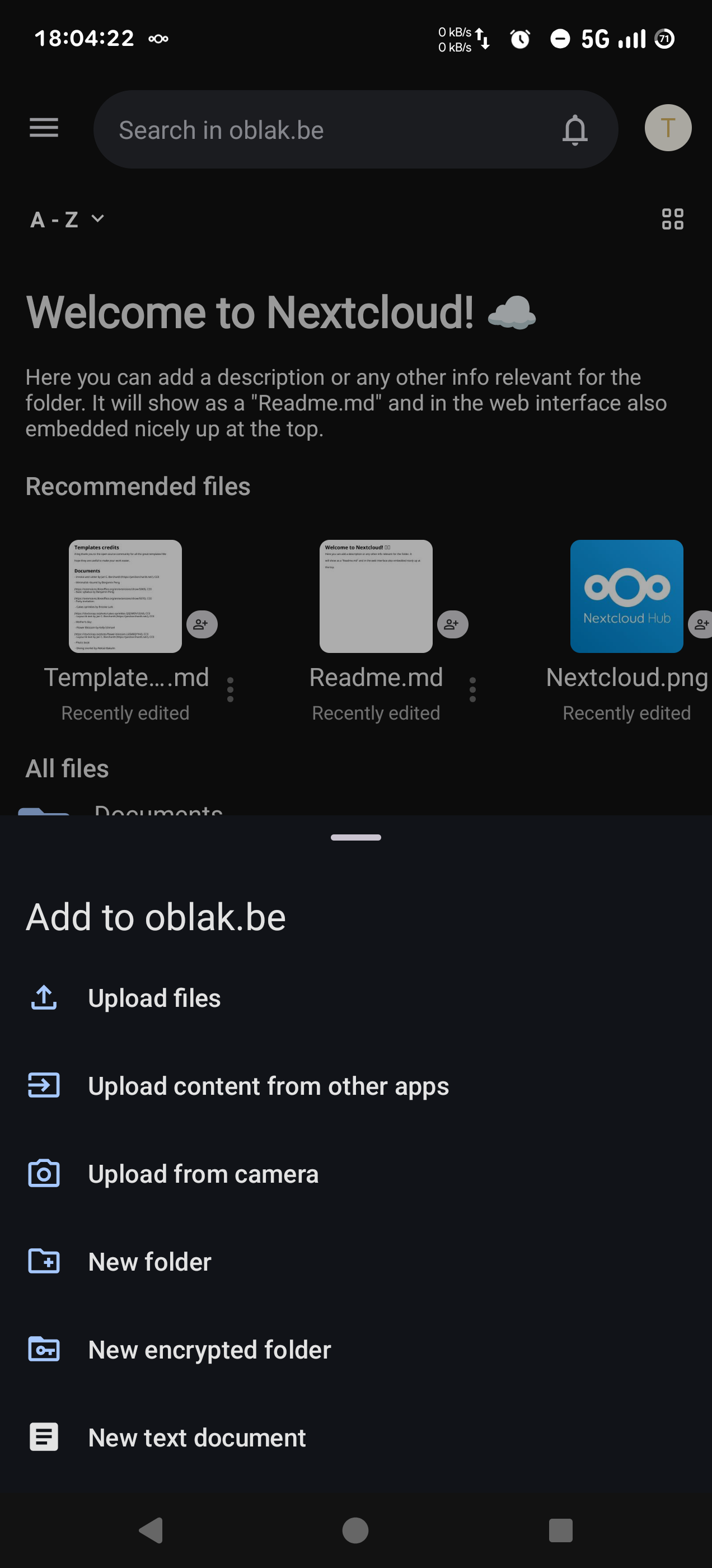
Give the folder a name and tap Create. The folder will now be visible in the app marked with the key icon.
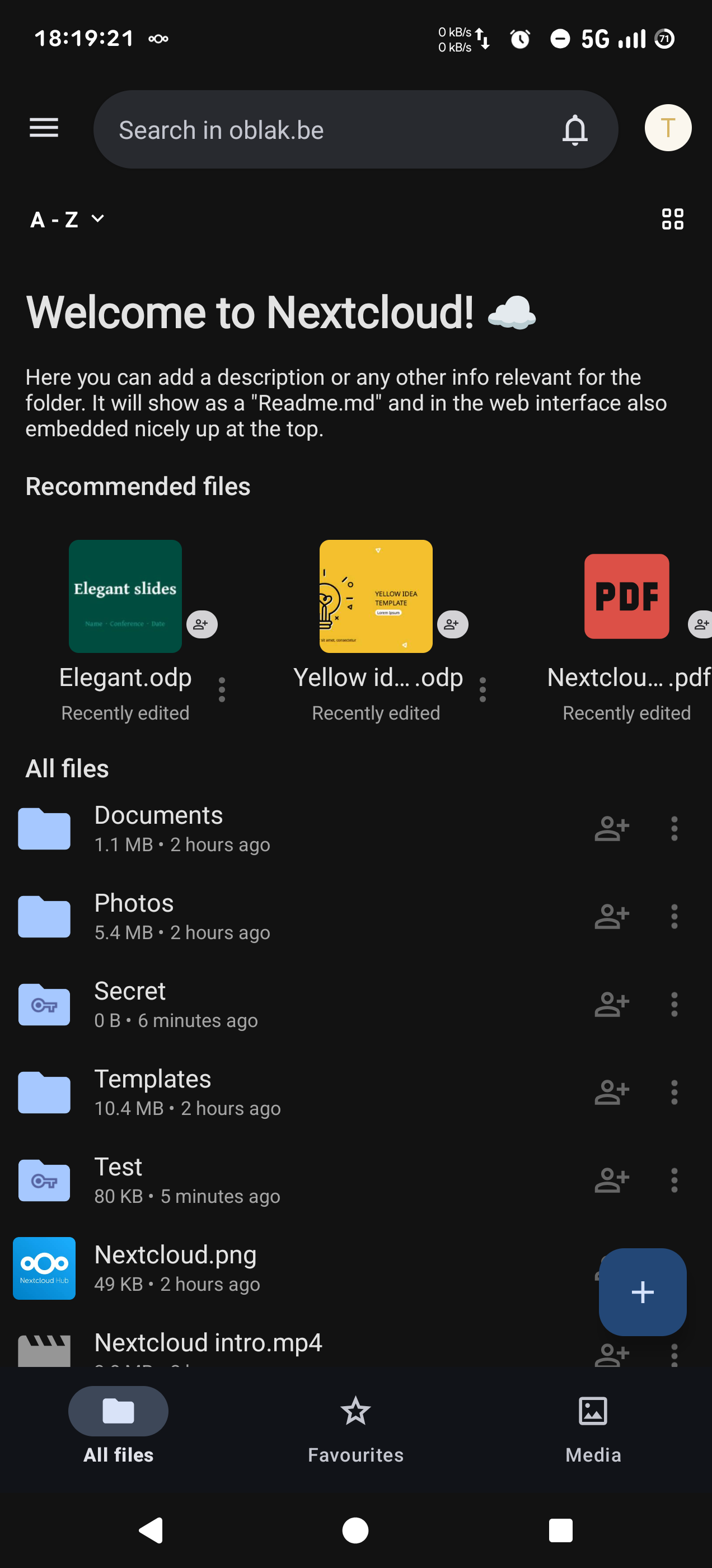
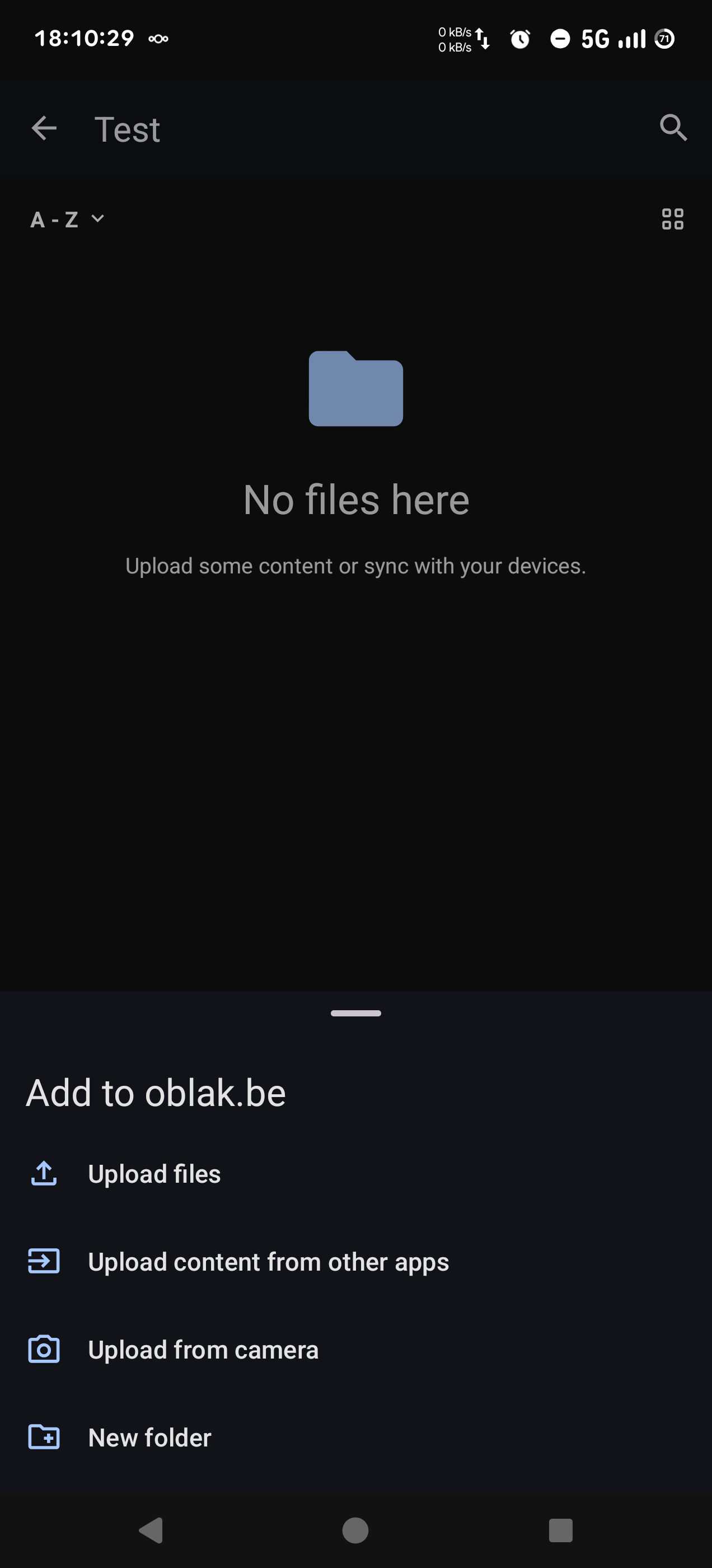
To add files to the folder, tap the folder and then the + icon. Choose from the list how you want to add files to the folder.
When you added a file you can see it in the app. On the server it will be stored in encrypted form.
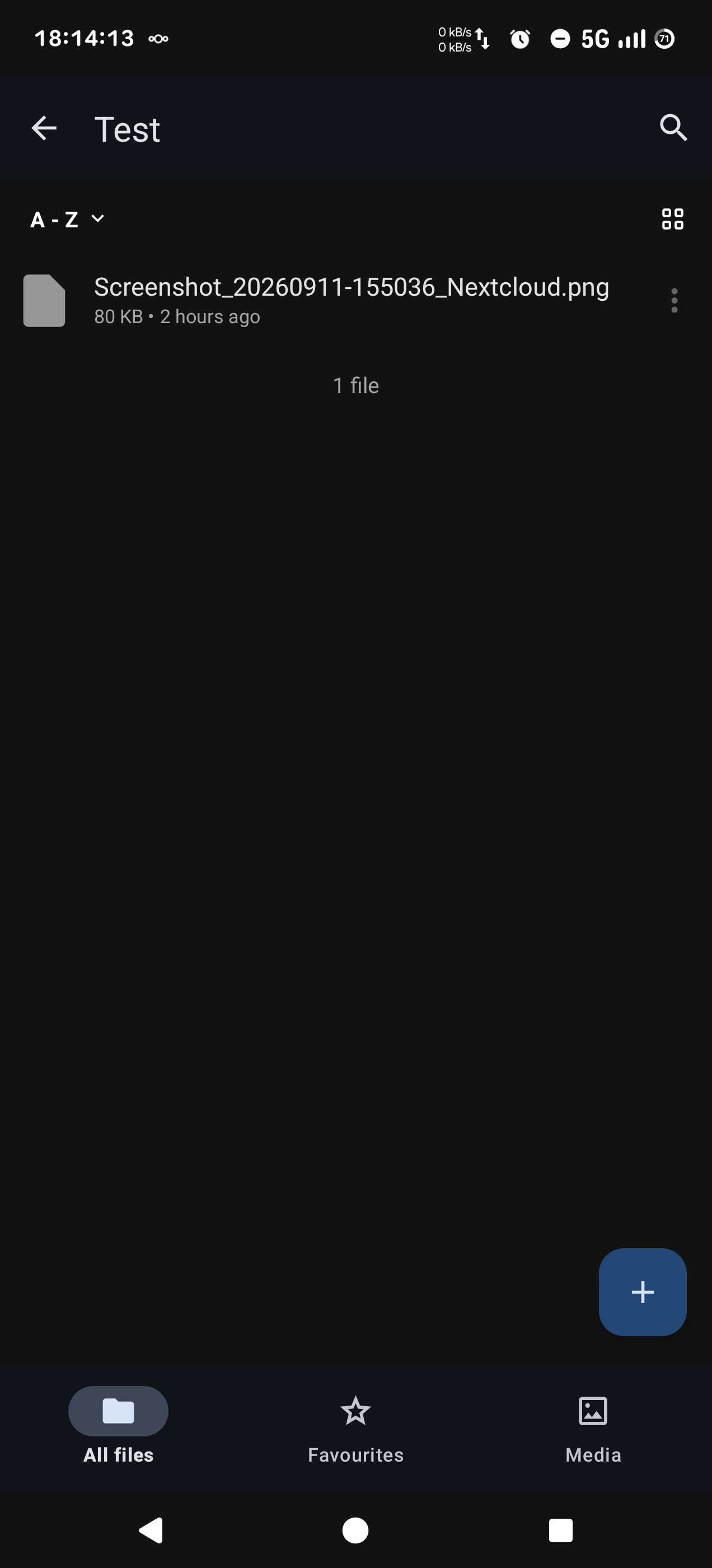
Files stored in this folder will now be encrypted before uploaded to the server. If you want to access the files from another devices (for example the web interface) you will need to use the Mnemonic seed phrase to make sure the other device can decrypt the files.
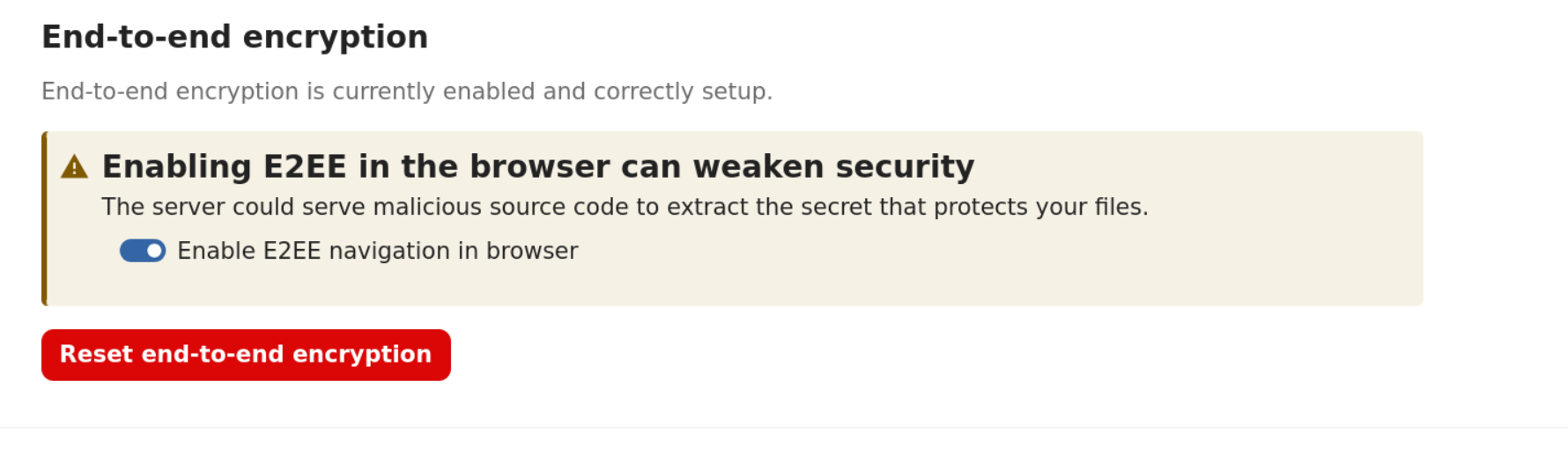
Open the web interface at cloud.oblak.be and go to End-to-end encryption in the Security Settings.
Click Enable E2EE navigation in browser. Acknowledge the warning and flick the switch.
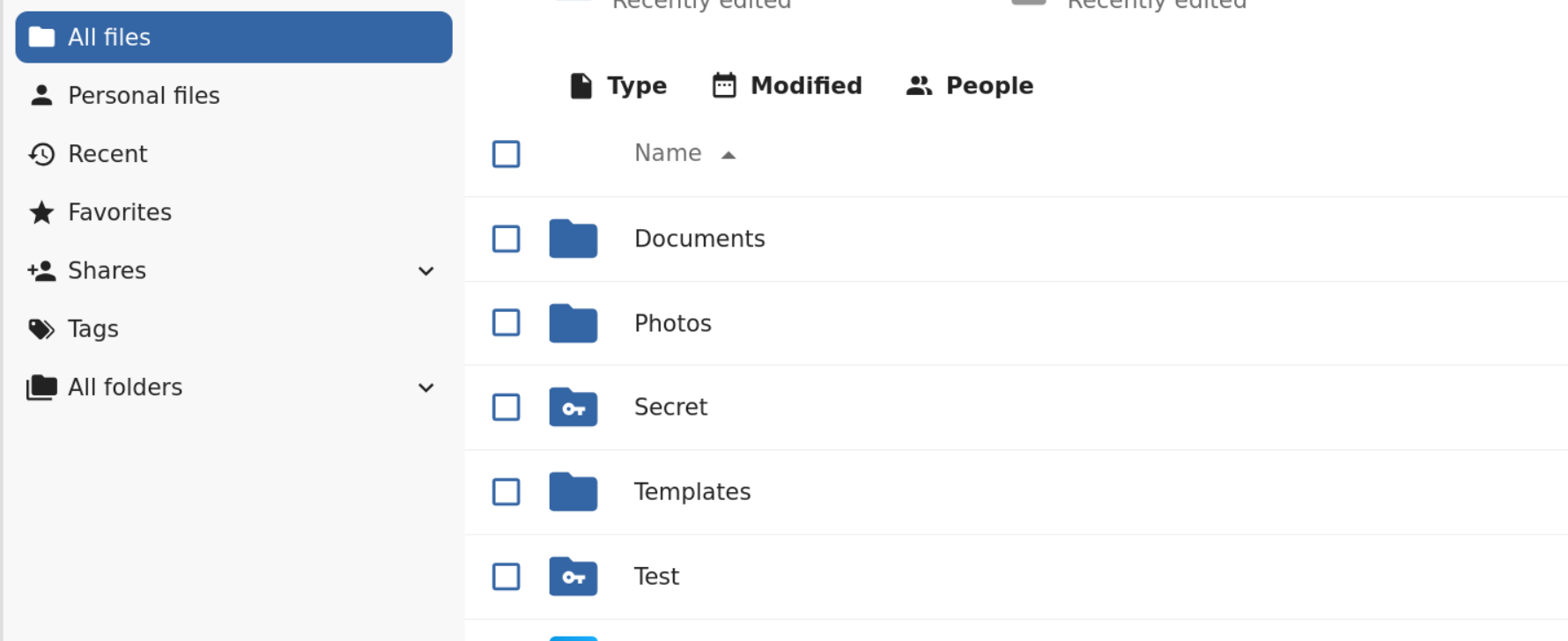
In the files overview, click an encrypted folder.
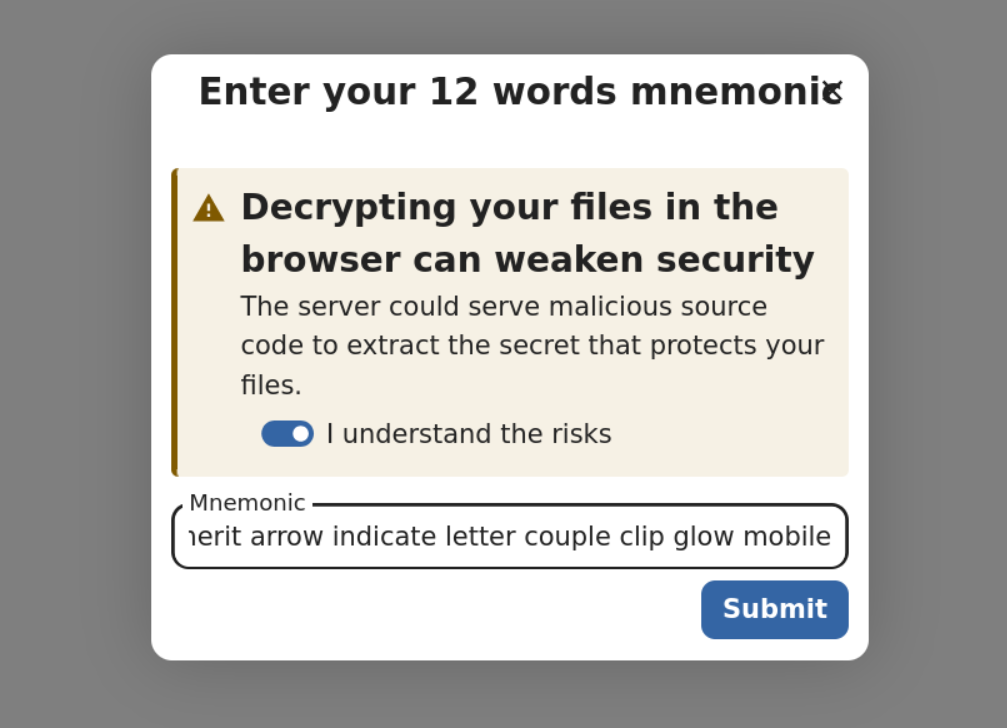
Enter the Mnemonic and click Submit. You can now access the encrypted files in the web interface.